
Secure administrative access is one of the most important parts of Cisco router hardening. In this lab, you will configure secure administrative access using encrypted passwords, local users, login banners, and SSH to protect router management access.
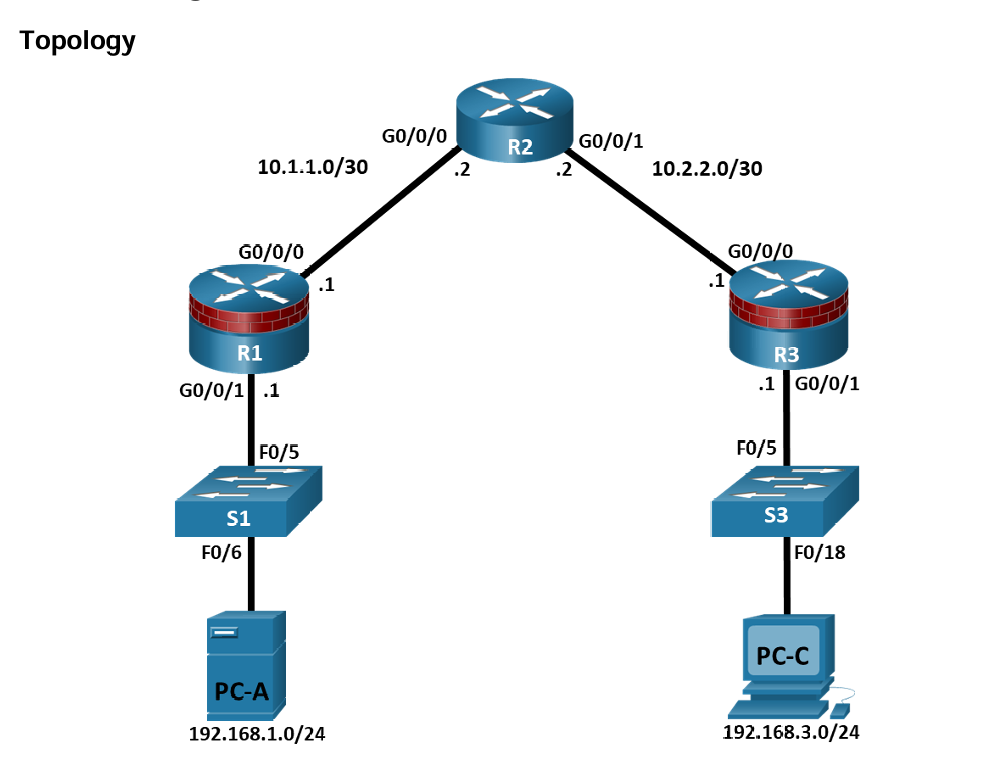
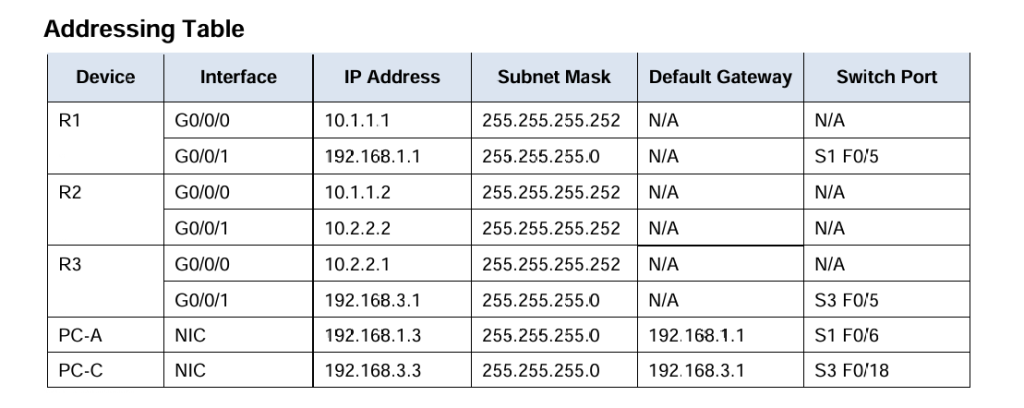
Objectives
Part 1: Configure Basic Device Settings
- Cable the network as shown in the topology.
- Configure basic IP addressing for routers and PCs.
- Configure OSPF routing.
- Configure PC hosts.
- Verify connectivity between hosts and routers.
Part 2: Configure and Encrypt Passwords on Routers R1 and R3
- Configure encrypted password for console, auxiliary port, and virtual access lines.
- Encrypt clear text passwords
- Configure a warning message banner
Part 3: Configure Enhanced Username Password Security on Routers R1 and R3
- Create new user accounts
- Log in using the user accounts
Part 4: Configure the SSH Server on Routers R1 and R3
- Configure a domain name
- Generate RSA encryption key
- Configure and verify SSH configurations
Background / Scenario
The router is a critical component in any network. It controls the movement of data into and out of the network and between devices within the network. It is particularly important to protect network routers because the failure of a routing device could make sections of the network, or the entire network, inaccessible. Controlling access to routers and enabling reporting on routers is critical to network security and should be part of a comprehensive security policy. This lab focuses on secure administrative access for Cisco routers in a small enterprise network.
In this lab, you will build a multi-router network and configure the routers and hosts. Use various CLI tools to secure local and remote access to the routers, analyze potential vulnerabilities, and take steps to mitigate them. Enable management reporting to monitor router configuration changes.
Note: The routers used with hands-on labs are Cisco 4221 with Cisco IOS XE Release 16.9.6 (universalk9 image). The switches used in the labs are Cisco Catalyst 2960+ with Cisco IOS Release 15.2(7) (lanbasek9 image). Other routers, switches, and Cisco IOS versions can be used. Depending on the model and Cisco IOS version, the commands available and the output produced might vary from what is shown in the labs.
Refer to the Router Interface Summary Table at the end of the lab for the correct interface identifiers.
Note: Before you begin, ensure that the routers and the switches have been erased and have no startup configurations.
Required Resources
- 3 Routers (Cisco 4221 with Cisco XE Release 16.9.6 universal image or comparable with a Security Technology Package license)
- 2 Switches (Cisco 2960+ with Cisco IOS Release 15.2(7) lanbasek9 image or comparable)
- 2 PCs (Windows OS with a terminal emulation program, such as PuTTY or Tera Term installed)
- Console cables to configure Cisco networking devices
- Ethernet cables as shown in the topology
Instructions
Part 1: Configure Basic Device Settings
In this part, set up the network topology and configure basic settings, such as interface IP addresses.
Step 1: Cable the network.
Attach the devices, as shown in the topology diagram, and cable as necessary.
Step 2: Configure basic settings for each router.
- Console into the router and enable privileged EXEC mode.
Router> enable
Router# configure terminal
- Configure host names as shown in the topology.
R1(config)# hostname R1
- Configure interface IP addresses as shown in the IP Addressing Table.
R1(config)# interface g0/0/0
R1(config-if)# ip address 10.1.1.1 255.255.255.0
R1(config-if)# no shutdown
R1(config)# interface g0/0/1
R1(config-if)# ip address 192.168.1.1 255.255.255.0
R1(config-if)# no shutdown
- To prevent the router from attempting to translate incorrectly entered commands as though they were host names, disable DNS lookup. R1 is shown here as an example.
R1(config)# no ip domain-lookup
Step 3: Configure OSPF routing on the routers.
- Use the router ospf command in global configuration mode to enable OSPF on R1.
R1(config)# router ospf 1
b. Configure the network statements for the networks on R1. Use an area ID of 0.
R1(config-router)# network 192.168.1.0 0.0.0.255 area 0
R1(config-router)# network 10.1.1.0 0.0.0.3 area 0
c. Configure OSPF on R2 and R3.R2(config)# router ospf 1
R2(config-router)# network 10.1.1.0 0.0.0.3 area 0
R2(config-router)# network 10.2.2.0 0.0.0.3 area 0
R3(config)# router ospf 1
R3(config-router)# network 10.2.2.0 0.0.0.3 area 0
R3(config-router)# network 192.168.3.0 0.0.0.255 area 0
d. Issue the passive-interface command to change the G0/0/1 interface on R1 and R3 to passive.
R1(config)# router ospf 1
R1(config-router)# passive-interface g0/0/1
R3(config)# router ospf 1
R3(config-router)# passive-interface g0/0/1
Step 4: Verify OSPF neighbors and routing information.
- Issue the show ip ospf neighbor command to verify that each router lists the other routers in the network as neighbors.
R1# show ip ospf neighbor
| Neighbor ID | Pri | State | Dead Time | Address | Interface |
| 10.2.2.2 | 1 | FULL/BDR | 00:00:37 | 10.1.1.2 | GigabitEthernet0/0/0 |
- Issue the show ip route command to verify that all networks display in the routing table on all routers.
R1# show ip route
Codes: L – local, C – connected, S – static, R – RIP, M – mobile, B – BGP D – EIGRP, EX – EIGRP external, O – OSPF, IA – OSPF inter area
N1 – OSPF NSSA external type 1, N2 – OSPF NSSA external type 2 E1 – OSPF external type 1, E2 – OSPF external type 2
i – IS-IS, su – IS-IS summary, L1 – IS-IS level-1, L2 – IS-IS level-2 ia – IS-IS inter area, * – candidate default, U – per-user static route o – ODR, P – periodic downloaded static route, H – NHRP, l – LISP
a – application route
+ – replicated route, % – next hop override, p – overrides from PfR Gateway of last resort is not set
10.0.0.0/8 is variably subnetted, 3 subnets, 2 masks
C 10.1.1.0/30 is directly connected, GigabitEthernet0/0/0 L 10.1.1.1/32 is directly connected, GigabitEthernet0/0/0
O 10.2.2.0/30 [110/2] via 10.1.1.2, 00:01:11, GigabitEthernet0/0/0 192.168.1.0/24 is variably subnetted, 2 subnets, 2 masks
| C | 192.168.1.0/24 | is directly connected, GigabitEthernet0/0/1 |
| L | 192.168.1.1/32 | is directly connected, GigabitEthernet0/0/1 |
| O | 192.168.3.0/24 [110/3] via 10.1.1.2, 00:01:07, GigabitEthernet0/0/0 | |
Step 5: Configure PC host IP settings.
Configure a static IP address, subnet mask, and default gateway for PC-A and PC-C as shown in the IP Addressing Table.
Step 6: Verify connectivity between PC-A and PC-C.
- Ping from R1 to R3.
If the pings are not successful, troubleshoot the basic device configurations before continuing.
- Ping from PC-A, on the R1 LAN, to PC-C, on the R3 LAN.
If the pings are not successful, troubleshoot the basic device configurations before continuing.
Note: If you can ping from PC-A to PC-C you have demonstrated that OSPF routing is configured and functioning correctly. If you cannot ping but the device interfaces are up and IP addresses are correct, use the show run, show ip ospf neighbor, and show ip route commands to help identify routing protocol-related problems.
Step 7: Save the basic running configuration for each router.
Save the basic running configuration for the routers as text files on your PC. These text files can be used to restore configurations later in the lab.
Part 2: Configure and Encrypt Passwords on Routers R1 and R3
In this part, you will:
- Configure encrypted passwords.
- Configure a login warning banner.
- Configure enhanced username password security.
- Configure enhanced virtual login security.
Note: Perform all tasks on both R1 and R3. The procedures and output for R1 are shown here.
Step 1: Configure encrypted passwords on routers R1 and R3.
- Configure the enable secret encrypted password on both routers. Use the type 9 (SCRYPT) hashing algorithm.
R1(config)# enable algorithm-type scrypt secret cisco12345
How does configuring an enable secret password help to protect a router from being compromised by an attack
- Use the security passwords command to set a minimum password length of 10 characters.
R1(config)# security passwords min-length 10
Step 2: Configure basic console, auxiliary port, and virtual access lines.
Note: Passwords in this task are set to a minimum of 10 characters but are relatively simple for the benefit of performing the lab. More complex passwords are recommended in a production network. A strong secure administrative access policy includes encrypted passwords and local authentication.
- Configure a console password and enable login for routers. For additional security, the exec-timeout command causes the line to log out after 5 minutes of inactivity. The logging synchronous command prevents console messages from interrupting command entry.
Note: To avoid repetitive logins during this lab, the exec-timeout command can be set to 0 0, which prevents it from expiring. However, this is not considered a good security practice.
R1(config)# line console 0 R1(config-line)# password ciscocon R1(config-line)# exec-timeout 5 0 R1(config-line)# login
R1(config-line)# logging synchronous
When you configured the password for the console line, what message was displayed?
- Configure a new password of ciscoconpass for the console.
- Configure a password for the AUX port for router R1.
R1(config)# line aux 0
R1(config-line)# password ciscoauxpass R1(config-line)# exec-timeout 5 0 R1(config-line)# login
- Telnet from R2 to R1.
R2> telnet 10.1.1.1
Were you able to login? Explain.
What messages were displayed?
- Configure the password on the vty lines for router R1.
R1(config)# line vty 0 4
R1(config-line)# password ciscovtypass R1(config-line)# exec-timeout 5 0 R1(config-line)# transport input telnet R1(config-line)# login
- Telnet from R2 to R1 again. Were you able to login this time?
- Enter privileged EXEC mode and issue the show run command. Can you read the enable secret password? Explain.
Can you read the console, aux, and vty passwords? Explain.
Step 3: Encrypt clear text passwords.
- Use the service password-encryption command to encrypt the console, aux, and vty passwords.
R1(config)# service password-encryption
- Issue the show run command.
Can you read the console, aux, and vty passwords? Explain.
At what level (number) is the default enable secret password encrypted?
At what level (number) are the other passwords encrypted?
Which level of encryption is harder to crack. Explain.
Step 4: Configure a warning message to display prior to login.
- Configure a warning to unauthorized users with a message-of-the-day (MOTD) banner using the banner motd command. When a user connects to one of the routers, the MOTD banner appears before the login prompt. In this example, the dollar sign ($) is used to start and end the message.
R1(config)# banner motd $Unauthorized access strictly prohibited!$
R1(config)# exit
- Issue the show run command.
What does the $ convert to in the output?
- Telnet to R1 from R2 again. Notice the MOTD banner.
- Repeat the configuration portion of previous steps on router R3.
Part 3: Configure Enhanced Username Password Security on Routers R1 and R3
Step 1: Investigate the options for the username command.
In global configuration mode, enter the following command: R1(config)# username user01 algorithm-type ? What options are available?
Step 2: Create a new user account with a secret password.
- Create a new user account with SCRYPT hashing to encrypt the password.
R1(config)# username user01 algorithm-type scrypt secret user01pass
- Exit global configuration mode and save your configuration.
- Display the running configuration.
Which hashing method is used for the password?
Step 3: Test the new account by logging in to the console.
- Set the console line to use the locally defined login accounts.
R1(config)# line console 0 R1(config-line)# login local R1(config-line)# end
R1# exit
- Exit to the initial router screen which displays: R1 con0 is now available, Press RETURN to get started.
- Log in using the previously defined username user01 and the password user01pass. What is the difference between logging in at the console now and previously?
- After logging in, issue the show run command. Were you able to issue the command? Explain.
- Enter privileged EXEC mode using the enable command. Were you prompted for a password? Explain.
Part 4: Configure the SSH Server on Routers R1 and R3
In this part, use the CLI to configure the router to be managed securely using SSH instead of Telnet. Secure Shell (SSH) is a network protocol that establishes a secure terminal emulation connection to a router or other networking device. SSH encrypts all information that passes over the network link and provides authentication of the remote computer. SSH is rapidly replacing Telnet as the remote login tool of choice for network professionals.
Note: For a router to support SSH, it must be configured with local authentication, (AAA services, or username) or password authentication. In this task, you configure an SSH username and local authentication. SSH is a critical part of secure administrative access because it protects remote management traffic.
Step 1: Configure a domain name.
Enter global configuration mode and set the domain name.
R1# conf t
R1(config)# ip domain-name netsec.com
Step 2: Configure a privileged user for login from the SSH client.
- Use the username command to create the user ID with the highest possible privilege level and a secret password.
R1(config)# username admin privilege 15 algorithm-type scrypt secret cisco12345
Note: Usernames are not case sensitive by default.
- Exit to the initial router login screen. Log in with the username admin and the associated password. What was the router prompt after you entered the password?
Step 3: Configure the incoming vty lines.
Specify a privilege level of 15 so that a user with the highest privilege level (15) will default to privileged EXEC mode when accessing the vty lines. Other users will default to user EXEC mode. Use the local user accounts for mandatory login and validation and accept only SSH connections.
R1(config)# line vty 0 4
R1(config-line)# privilege level 15 R1(config-line)# login local R1(config-line)# transport input ssh R1(config-line)# exit
Note: The login local command should have been configured in a previous step. It is included here to provide all commands if you are doing this for the first time.
Note: If you add the keyword telnet to the transport input command, users can log in using Telnet as well as SSH, however, the router will be less secure. If only SSH is specified, the connecting host must have an SSH client installed.
Step 4: Erase existing key pairs on the router.
R1(config)# crypto key zeroize rsa
Note: If no keys exist, you might receive this message: % No Signature RSA Keys found in configuration.
Step 5: Generate the RSA encryption key pair for the router.
The router uses the RSA key pair for authentication and encryption of transmitted SSH data.
- Configure the RSA keys with 1024 for the number of modulus bits. The default is 512, and the range is from 360 to 2048.
R1(config)# crypto key generate rsa general-keys modulus 1024
The name for the keys will be: R1.netsec.com
% The key modulus size is 1024 bits
% Generating 1024 bit RSA keys, keys will be non-exportable…[OK]
R1(config)#
*Dec 16 21:24:16.175: %SSH-5-ENABLED: SSH 1.99 has been enabled
- Issue the ip ssh version 2 command to force the use of SSH version 2.
R1(config)# ip ssh version 2
R1(config)# exit
Note: The details of encryption methods are covered in later module.
Step 6: Verify the SSH configuration.
- Use the show ip ssh command to see the current settings.
R1# show ip ssh
- Fill in the following information based on the output of the show ip ssh command. SSH version enabled:
Authentication timeout:
Authentication retries:
Step 7: Configure SSH timeouts and authentication parameters.
- The default SSH timeouts and authentication parameters can be altered to be more restrictive using the following commands.
R1(config)# ip ssh time-out 90
R1(config)# ip ssh authentication-retries 2
- Use the show ip ssh command to see the current settings.
- Save the running-config to the startup-config.
R1# copy running-config startup-config
- Repeat the configuration portion of previous steps on router R3.
Step 8: Verify SSH connectivity to R1 from PC-A.
- From PC-A, SSH into router R1 using the terminal emulation software by selecting the SSH option and providing the IP address of R1. Confirm that you will trust the host (R1) when prompted in the security alert.
- Enter the admin username and password cisco12345 when prompted.
- At the R1 privileged EXEC prompt, enter the show users command.
R1# show users
What users are connected to router R1 at this time?
- Close the SSH session window.
- Try to open a Telnet session to your router from PC-A. Were you able to open the Telnet session? Explain.
- Open a PuTTY SSH session to the router from PC-A. Enter the user01 username and password
user01pass in the PuTTY window to try connecting for a user who does not have privilege level of 15. If you were able to login, what was the prompt?
- Use the enable command to enter privilege EXEC mode and enter the enable secret password
cisco12345.
Reflection
- Explain the importance of securing router access and monitoring network devices.
- What advantages does SSH have over Telnet?
Router Interface Summary Table
| Router Model | Ethernet Interface #1 | Ethernet Interface #2 | Serial Interface #1 | Serial Interface #2 |
| 1900 | Gigabit Ethernet 0/0 (G0/0) | Gigabit Ethernet 0/1 (G0/1) | Serial 0/0/0 (S0/0/0) | Serial 0/0/1 (S0/0/1) |
| 2900 | Gigabit Ethernet 0/0 (G0/0) | Gigabit Ethernet 0/1 (G0/1) | Serial 0/0/0 (S0/0/0) | Serial 0/0/1 (S0/0/1) |
| 4221 | Gigabit Ethernet 0/0/0 (G0/0/0) | Gigabit Ethernet 0/0/1 (G0/0/1) | Serial 0/1/0 (S0/1/0) | Serial 0/1/1 (S0/1/1) |
| 4300 | Gigabit Ethernet 0/0/0 (G0/0/0) | Gigabit Ethernet 0/0/1 (G0/0/1) | Serial 0/1/0 (S0/1/0) | Serial 0/1/1 (S0/1/1) |
Note: To find out how the router is configured, look at the interfaces to identify the type of router and how many interfaces the router has. There is no way to effectively list all the combinations of configurations for each router class. This table includes identifiers for the possible combinations of Ethernet and Serial interfaces in the device. The table does not include any other type of interface, even though a specific router may contain one. An example of this might be an ISDN BRI interface. The string in parenthesis is the legal abbreviation that can be used in Cisco IOS commands to represent the interface. Configuring secure administrative access helps prevent unauthorized users from controlling the router. Without secure administrative access, router login credentials can be exposed or misused. Also, Proper secure administrative access reduces the attack surface of Cisco routers. In production environments, secure administrative access is a core router hardening practice.
🚀 Cisco CCNA Short Tips Commands You Must Know! 👇
More Content:
CCNA Lab 1: Configure Hostname and IP Address
IPsec VPN Configuration Cisco (LAN-to-LAN) – Packet Tracer Lab